Ilopad for CachyOS is published as a pacman package (.pkg.tar.zst) in the Ilopad repository. Add the repository once and pacman installs it and every later release, the same way it handles the rest of your system.
Add the Ilopad repository
The recommended way. Three commands, and updates arrive on their own afterwards.
Trust the signing key
Import the Ilopad key into pacman’s keyring and sign it locally, which is what tells pacman to trust it:
Add the repository
Append the repository to /etc/pacman.conf:
Install Ilopad
Refresh the package databases, update the system and install. Press Enter at each question to accept the default:
-Syu, not -Sy: CachyOS does not support a partial upgrade. If pacman also updates the kernel, restart the computer before you start Ilopad. From now on pacman keeps Ilopad current along with the rest of your system: each new release arrives with sudo pacman -Syu. Every package and every index is signed, and pacman refuses anything that does not verify.Start Ilopad
Launch the server from the terminal, or find Ilopad in your applications menu:
Install a single release by hand
Use this if you would rather not add a repository. It installs one release and nothing more: Ilopad will not update itself, so you repeat these steps for each new version. Prefer to point and click? CachyOS ships Octopi, a graphical package manager. Use its File → Install local package… action. A double-click on the package only opens the archive manager, so install it through Octopi instead.
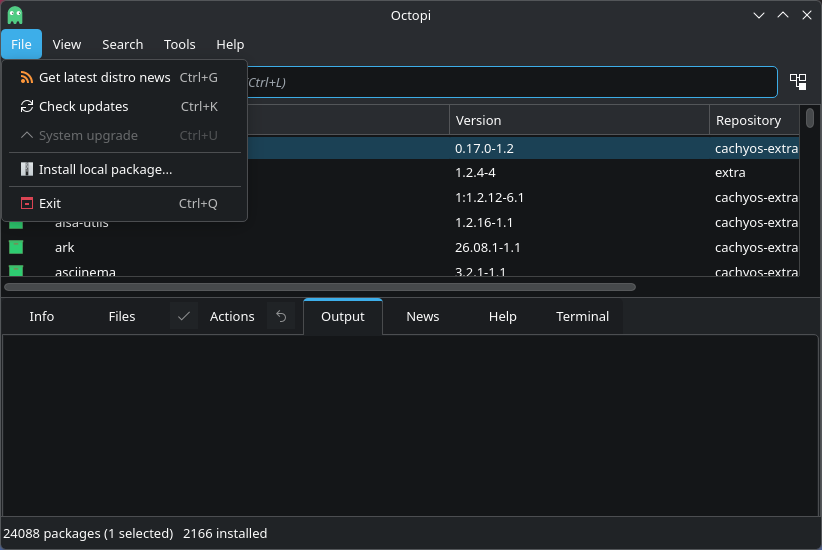
Open Octopi and choose Install local package
Launch Octopi from your applications menu. Open the File menu and click Install local package….
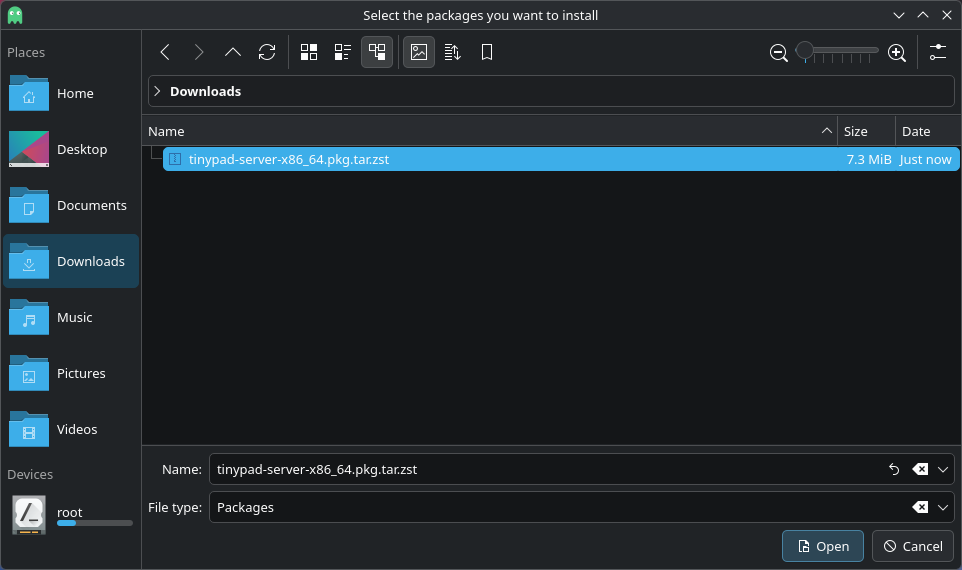
Select the downloaded package
In the file picker, click Downloads and double-click the ilopad-server-x86_64.pkg.tar.zst you downloaded.
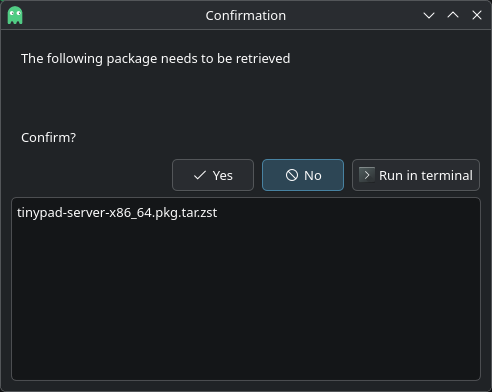
Confirm the installation
Octopi lists the package to be installed. Click Yes to continue.
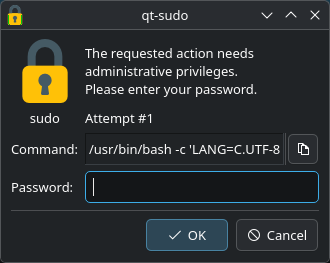
Authenticate
Enter your password to authorize the installation, then click OK. Octopi installs the package and reports Command finished OK! when done.
Start Ilopad
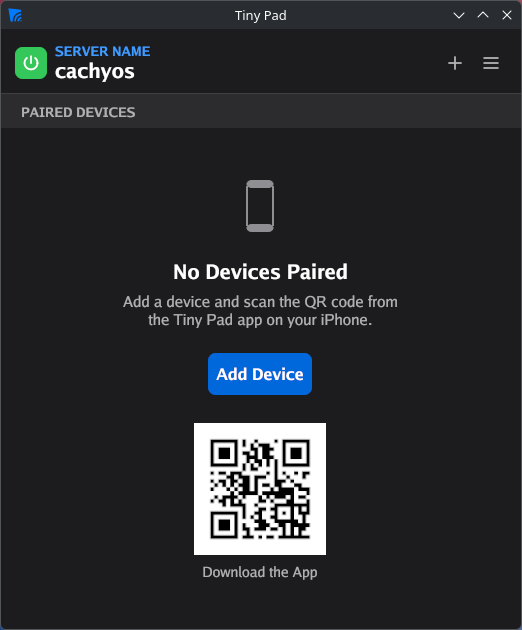
Launch Ilopad from your applications menu. It opens its window. On the first start, Ilopad asks for your password to open its network ports (UDP 4444 and 5353) in ufw, the firewall that CachyOS turns on by default. Enter it and click OK. Then click Add Device to pair your iPhone.
Uninstall
To remove Ilopad, with its settings and the permissions that it added, follow Uninstall on CachyOS.