On this page
About touchpad mode
In touchpad mode, the device is a trackpad for the computer. You move the pointer, click, drag and scroll with your fingers, as on a laptop trackpad.
Use touchpad mode for usual work on the computer: to open files, to select text, to scroll pages and to type. It works on the iPhone and on the iPad, with a server on Windows, macOS or Linux.
To open touchpad mode, tap the mode button in the toolbar. Then tap Touchpad.
The screen
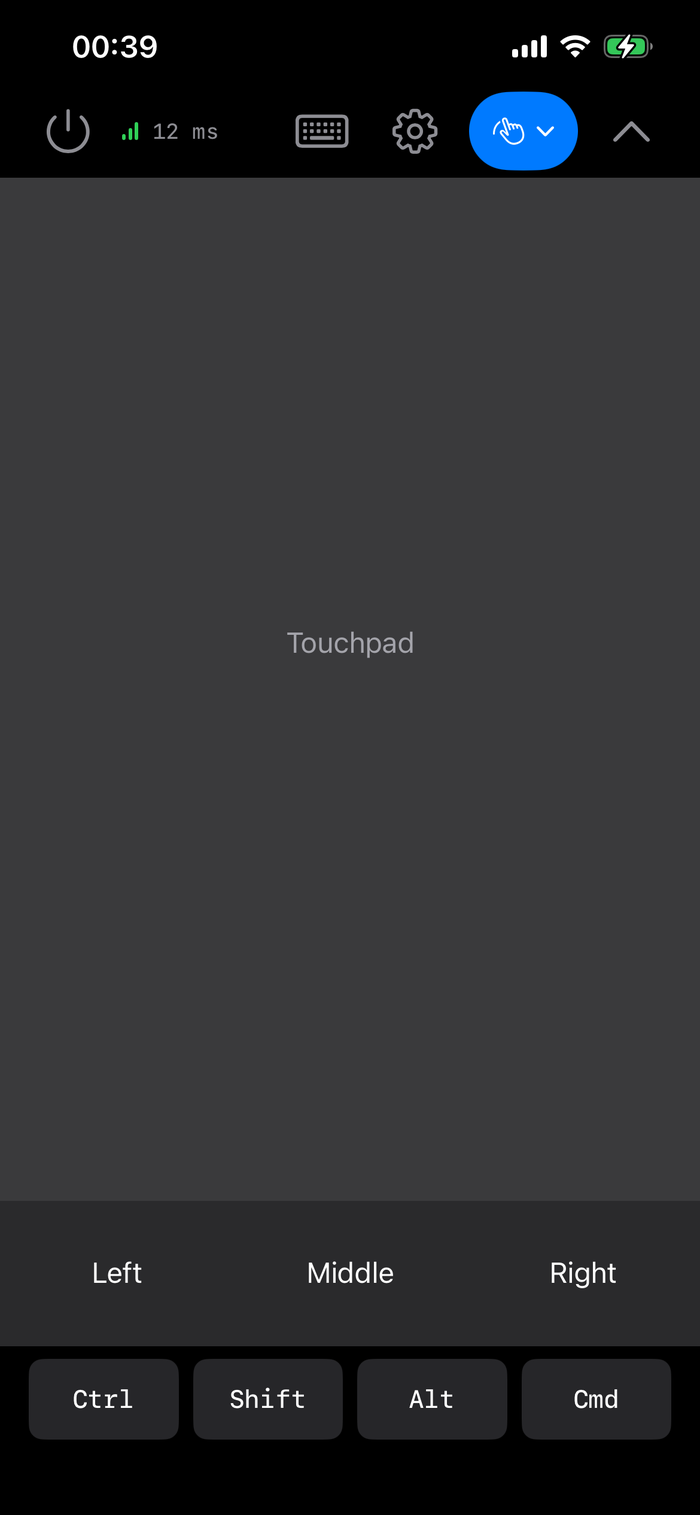
The screen has four parts, from top to bottom:
- The toolbar. It is on top of the touch surface.
- The touch surface. It shows the word Touchpad. You move your fingers on this area.
- The mouse buttons. Left, Middle and Right.
- The modifier row. Ctrl, Shift, Alt and Cmd.
The toolbar
The toolbar shows icons. The table gives the name that VoiceOver speaks for each icon.
| Control | What it does |
|---|---|
| Disconnect (power icon) | Ends the connection and goes back to the server list. |
| Connection (signal bars and a time) | Shows the quality of the connection. Tap it to see the details of the server and the connection. See Connection state. |
| Keyboard | Opens or closes the keyboard. See Type on the computer. |
| Settings (gear icon) | Opens the settings on the Touchpad page. |
| Mode button | Changes the mode. On an iPad, it also shows the name of the mode. |
| Hide toolbar (up arrow, at the right end) | Hides the toolbar and the modifier row. The touch surface becomes larger. |
When the screen is narrow, Keyboard and Settings move into the More controls menu (a circle with three dots). This occurs on an iPhone SE or an iPhone mini in portrait.
To show a hidden toolbar again, tap the tab in the top right corner of the screen (Show toolbar).
Gestures
Do these gestures on the touch surface.
| Gesture | Result on the computer |
|---|---|
| Move one finger | The pointer moves. |
| Tap with one finger | Left click. |
| Tap two times quickly | Double-click. |
| Tap, then touch again quickly and move the finger | Drag. The left button stays down until you lift the finger. |
| Tap with two fingers | Right click. |
| Move two fingers up or down | Vertical scroll. |
| Move two fingers left or right | Horizontal scroll. |
| Swipe three fingers up, down, left or right | A shortcut of the computer. See Three-finger swipes. |
To change the speed of the pointer, change Sensitivity. See Touchpad settings.
How to drag an item
- Move the pointer onto the item.
- Tap the touch surface one time.
- Immediately touch the surface again and keep the finger on it.
- Move the finger. The item moves with the pointer.
- Lift the finger to drop the item.
The mouse buttons
The three buttons below the touch surface work as the buttons of a mouse.
- Touch and hold a button: the button goes down on the computer.
- Lift the finger: the button comes up.
A short tap on Left is a left click. A short tap on Middle is a middle click. A middle click opens a link in a new tab in most web browsers.
You can also drag with a button. Hold Left with one finger. Then move a different finger on the touch surface.
To put the buttons in the opposite order (Right, Middle, Left), turn on Invert Button Order. See Touchpad settings.
Three-finger swipes
A quick swipe with three fingers sends a keyboard shortcut to the computer. The server selects the shortcut for its operating system.
| Swipe | Windows | macOS | Linux |
|---|---|---|---|
| Up | Win+Tab (Task View) | Control+↑ (Mission Control) | Super |
| Down | Win+D (show the desktop) | Control+↓ (App Exposé) | Super |
| Left | Win+Ctrl+← (previous desktop) | Control+← (space on the left) | Ctrl+Alt+← |
| Right | Win+Ctrl+→ (next desktop) | Control+→ (space on the right) | Ctrl+Alt+→ |
On Linux, the result of each shortcut depends on your desktop. On many desktops, Super opens the overview, and Ctrl+Alt+← or → goes to a different workspace.
A slow three-finger movement sends nothing. Swipe quickly.
Type on the computer
Touchpad mode has a keyboard. The text that you type goes to the computer. The app does not keep it.
- Click the text field on the computer, or move the pointer to it and tap.
- Tap Keyboard in the toolbar. On a narrow screen, tap More controls, then tap Keyboard.
- Type on the keyboard of the device.
- To close the keyboard, tap Keyboard again, or use the key that closes the iOS keyboard.
Each letter goes to the computer as a key press. A capital letter goes as Shift and the letter. The delete key sends Backspace. The return key sends Enter. A character that has no key on the keyboard of the computer goes to the computer as text.
While the keyboard is open, the toolbar does not hide.
Modifier keys
The modifier row has four keys: Ctrl, Shift, Alt and Cmd. Each key stays down on the computer until you release it.
- Tap a modifier key: it goes down on the computer. The key shows the accent color.
- Tap the key again: it comes up. The key shows its usual color.
While a modifier is down, it applies to all input: to clicks, to taps, to scroll and to the keys that you type. For example, turn on Ctrl, then type c to copy on Windows or Linux. Turn on Shift, then click, to extend a selection.
The keys go to the computer as follows:
| Key in the app | Windows | macOS | Linux |
|---|---|---|---|
| Ctrl | Ctrl | Control | Ctrl |
| Shift | Shift | Shift | Shift |
| Alt | Alt | Option | Alt |
| Cmd | Win | Command | Super |
Apple Pencil on the touchpad
On an iPad, you can use an Apple Pencil on the touch surface. The pencil works as one finger: move the tip to move the pointer, and tap to click. Tap, then touch again and move, to drag. The touchpad does not use the pressure of the pencil.
If the iPad detects a pencil above the screen, move the pencil tip above the surface without a touch. The pointer follows the tip.
To draw on the computer with pressure and tilt, use pencil mode.
iPhone, iPad and orientation
- Touchpad mode turns with the device. You can use it in portrait or in landscape.
- On an iPhone SE or an iPhone mini in portrait, Keyboard and Settings are in the More controls menu. On other iPhones and on an iPad in full screen, they are on the toolbar.
- Only the iPad takes an Apple Pencil.
Touchpad settings
Tap Settings in the toolbar. The Touchpad page opens.
| Setting | What it does | Default |
|---|---|---|
| Sensitivity | How far the pointer moves for one movement of your finger. The range is 0.5 to 10.0. The app keeps one value for each server. | 1.5 |
The app keeps Sensitivity for each server. Thus you must be connected to change it. Without a connection, the page shows it dimmed. See Settings for each server.
Other settings change touchpad mode too:
| Setting | Page | What it does | Default |
|---|---|---|---|
| Invert Button Order | Pointer | Puts the three mouse buttons of touchpad mode in the order Right, Middle, Left. | Off |
| Haptic Feedback | General | The device gives a light tap feel for a click, a right click, the start of a drag and a button press. | On |
For Auto-Hide, Hide Delay and the other settings on the General page, see General settings.