On this page
This chapter gives the common connection problems. Each problem starts with what you see. Then it gives the cause and the fix. To install the server or the app, see How to install.
Before you start
Most connection problems stop after these checks:
- The server runs. Open the server window on the computer. The power button at the top left is green when the server runs.
- The same network. The device and the computer are on the same Wi-Fi network or on the same home network.
- The newest versions. Update the app from the App Store. Update the server on the computer. A server and an app that are too far apart in version cannot connect.
- The device is paired. The server shows in the app, in the Servers list. The device shows in the server window, under PAIRED DEVICES. See Add a device to the server.
Messages in the app
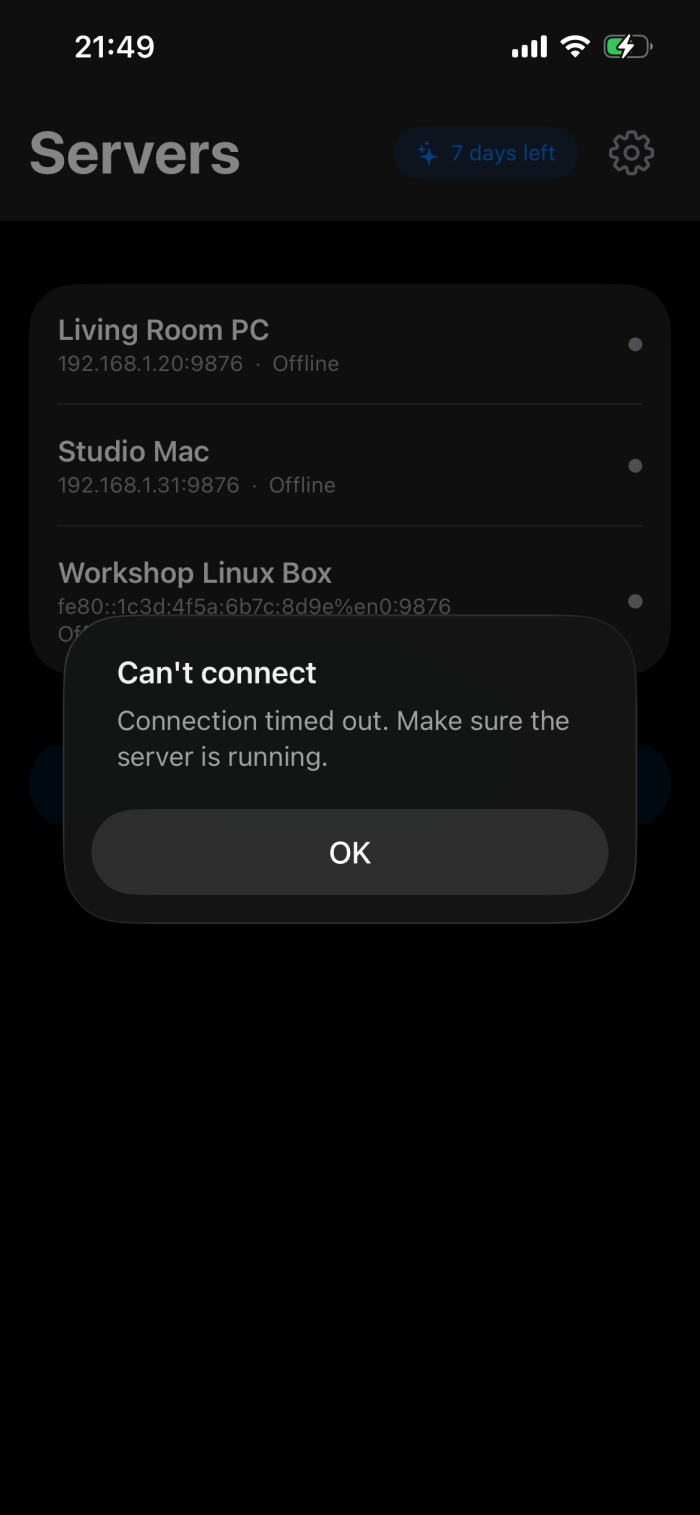
When a connection fails after you tap a server, the app shows the Can't connect alert. The text in the alert gives the cause. Tap OK to close it. The app does not try again by itself. Tap the server again when you are ready.
“Ilopad can't use your network”
The app shows this full screen with the buttons Open Settings and Not Now.
The cause: the Local Network permission for Ilopad is off in iOS. Without it, the app cannot find or reach any server.
- Tap Open Settings. iOS opens the Ilopad page in Settings.
- Turn on Local Network.
- Go back to the Ilopad app.
- Tap the server.
“Cannot reach the server. Check that both devices are on the same network.”
The cause: the device cannot send data to the computer. These conditions stop the connection:
- The device and the computer are on different networks. For example, the device uses mobile data, or a different Wi-Fi network.
- The device is on a guest Wi-Fi network. Many guest networks do not let two devices on the network talk to each other.
- A VPN is on, on the device or on the computer. A VPN can send the data away from the home network.
- On the device, open Settings › Wi-Fi. Make sure that Wi-Fi is on.
- Connect the device to the same network as the computer. Do not use a guest network.
- Turn off the VPN on the device and on the computer.
- In the app, tap OK.
- Tap the server again.
“Connection timed out. Make sure the server is running.”
In the Servers list, the server can also show Offline. The app looks for the server on the network, and it did not find it.
The cause: the server is stopped, the server program is closed, the computer sleeps, or a firewall blocks the connection.
- Make sure that the computer is on and does not sleep.
- Open the server window on the computer. If the server program is closed, start Ilopad.
- If the power button at the top left is not green, click it. Its tooltip is Start the server.
- On Windows and Linux, make sure that the firewall lets the device in. See The firewall blocks the connection.
- In the app, tap OK.
- Tap the server again.
“Connection failed. Try re-pairing with the server.”
The cause: the pairing keys in the app do not agree with the keys on the server. This occurs when:
- Somebody used Revoke device access... on the server to delete the device.
- Somebody made a new QR code for the device with Regenerate QR Code, and the app did not scan it.
- The device row on the server shows a warning icon. See A warning icon on a device row.
To fix it, pair the device again. If the device is still in the server list:
- In the server window, click the device row. A menu opens.
- Click Regenerate QR Code.
- Click Continue. The server shows a new QR code.
- In the app, go to the Servers list and tap Scan QR Code.
- Point the camera at the QR code on the computer.
If the device is not in the server list:
- In the server window, click +. Its tooltip is Add a device.
- Type a name for the device.
- Click Generate QR.
- In the app, tap Scan QR Code.
- Point the camera at the QR code.
“Something went wrong. Please try again.”
The cause: the connection failed for a reason that the app cannot name.
- Tap OK.
- Tap the server again.
- If the connection fails again, quit the server. Click the menu button at the top right of the server window, then click Quit.
- Start Ilopad on the computer again.
- Tap the server in the app.
If the problem continues, see Get help.
“Can't read your saved servers”
The app shows this screen with the buttons Try Again and Set Up a New Server.
The cause: the app keeps the pairings in the iOS Keychain, and the Keychain did not answer. This can occur when the device is locked. The app did not delete the pairings.
- Unlock the device.
- Tap Try Again.
A related alert is Pairing not saved. The connection works now, but the app could not keep the pairing. The end of the alert gives the reason. Correct the reason. Then scan the QR code again, the next time that you open the app.
Pairing problems
These messages show in the app while you pair a device. To pair a device, see Add a device to the server.
“Ilopad can't use the camera”
The app shows this screen after you tap Scan QR Code. It has the buttons Open Settings and Not Now.
The cause: the Camera permission for Ilopad is off in iOS. The app needs the camera to read the QR code.
- Tap Open Settings. iOS opens the Ilopad page in Settings.
- Turn on Camera. iOS can restart the app.
- Open the Ilopad app.
- Tap Scan QR Code again.
“This doesn't look like an Ilopad QR code.”
The scanner shows this text under the frame. After a short time, the scanner looks for a code again.
The cause: the camera read a QR code that is not a pairing code from the server, or a code that it could not read fully.
- On the computer, show a pairing code from the server. Click +, type a name, then click Generate QR.
- Hold the device so that the full code is in the frame.
- Keep the device still until the app accepts the code.
“This QR code is from a newer version of Ilopad. Please update the app.”
The cause: the server and the app use different formats for the pairing code.
- Update the app from the App Store.
- Update the server on the computer.
- Make a new QR code on the server, and scan it.
Messages on the computer
“No Network Address”
The server shows this window after you click Generate QR. The text starts with “Ilopad found no network address for this computer, so it cannot make a pairing code.”
The cause: the computer is not connected to a network. The pairing code must contain an address that the device can use.
- Click OK.
- Connect the computer to the network, with Wi-Fi or with a cable.
- Click + again and make the QR code.
A warning icon on a device row
In the server window, a device row shows a yellow warning icon after the device name. Hold the pointer on the icon. The tip says that the device cannot connect, and that you must pair it again.
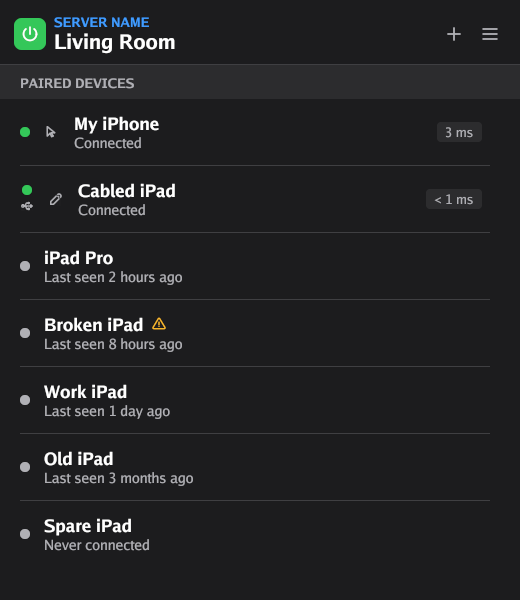
The cause: the server cannot read the key that it keeps for this device. The server refuses the device each time that it tries to connect. Time does not correct this.
- Click the device row.
- Click Regenerate QR Code.
- Click Continue.
- In the app, tap Scan QR Code and scan the new code.
The firewall blocks the connection
The device connects to the server over UDP. The server uses port 4444 by default, and port 5353 to announce itself on the network. A firewall on the computer that blocks these ports stops all connections over Wi-Fi.
Windows: “Let your tablet reach this computer?”
The installer adds the firewall rules when you install Ilopad. If the rules are missing, the server shows this window. If the rules are for an old location or an old port, the window title is “Ilopad has moved”.
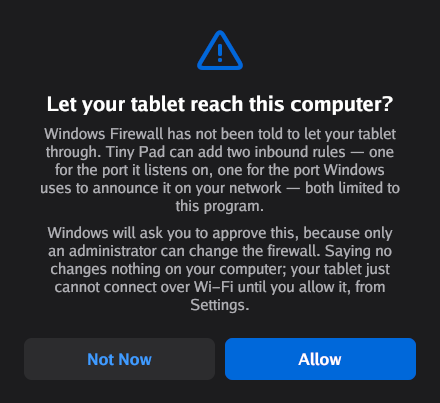
- Click Allow.
- Windows asks for permission to make changes. Click Yes.
- In the app, tap the server again.
If you clicked Not Now, the server does not show the window again for the same problem. To add the rules later:
- In the server window, click the menu button at the top right.
- Click Settings.
- Find the Windows Firewall row. It shows Blocked when the rules are missing.
- Click the row. The firewall window opens.
- Click Allow, then click Yes.
The row shows Allowed when the rules are correct.
Linux
Each time that the server starts, it looks for an active firewall: firewalld, ufw, nftables or iptables. If the firewall blocks the ports, the server asks for your password one time, and adds the rules for the two ports. If you cancel the password prompt, the firewall continues to block the device.
On Fedora and openSUSE, the package opens the ports with the firewalld service ilopad-server, so the server does not ask.
- Quit the server. Click the menu button, then click Quit.
- Start Ilopad again.
- When the system asks for your password, type it and approve.
You can also add the rules yourself. For firewalld on Fedora and openSUSE, where the package installed the service:
sudo firewall-cmd --permanent --add-service=ilopad-server
sudo firewall-cmd --reload
For firewalld on a different system:
sudo firewall-cmd --permanent --add-port=4444/udp --add-port=5353/udp
sudo firewall-cmd --reload
For ufw:
sudo ufw allow 4444/udp
sudo ufw allow 5353/udp
macOS
The server does not change the firewall on macOS. If you turned on the macOS firewall, make sure that it does not block incoming connections to Ilopad.
USB does not connect
When the cable carries the connection, the toolbar in the app shows a cable icon. In the server window, the device row shows a USB icon. If you do not see these icons, do these checks.
Connect over the network first
The app cannot start a connection over the cable. It must connect over the network first. Then the cable takes the connection. There is no USB setting in the app. USB is always on. For the procedure, see Connect with a USB cable.
Keep the app open
The USB connection works only while the app is on the screen. When you go to a different app, or when the device locks, the app stops the USB connection. When you come back, the app starts it again.
Windows: install the Apple Devices app
On Windows, USB needs the Apple Mobile Device Service. The Apple Devices app or iTunes installs it.
- Install Apple Devices from the Microsoft Store.
- Quit the server. Click the menu button, then click Quit.
- Start Ilopad again. The server looks for the service only when it starts.
Linux: install usbmuxd
On Linux, USB needs the usbmuxd package. Some Ilopad packages do not install it automatically. Install it with the command for your system:
sudo apt install usbmuxd       # Debian, Ubuntu, Linux Mint, Pop!_OS
sudo dnf install usbmuxd       # Fedora
sudo pacman -S usbmuxd         # Arch, Manjaro, EndeavourOS, CachyOS
sudo zypper install usbmuxd    # openSUSE
Then connect the cable again.
“USB: Unavailable” in the connection details
Tap the quality bars in the toolbar. If the details show a USB row with Unavailable: and a reason, the app could not open its USB port on the device.
The cause: a different program on the device uses the same port.
- Tap the power button in the toolbar to disconnect.
- Tap the server to connect again.
- If the row is still there, restart the device.
Connected, but nothing happens
The app shows a connection, but the pointer does not move, or keys do not arrive. The server must have permission to control the mouse and the keyboard. To see if the input arrives at the server, use the Input Testing window. See Test the input.
macOS: “Permission Required”
The server shows this window when it starts. It says that Ilopad needs the Accessibility permission. The server does not accept connections until you give the permission.
- Click Grant Access.
- macOS shows a dialog. Click Open System Settings. You can also go to System Settings › Privacy & Security › Accessibility.
- Turn on Ilopad.
- Type the Mac password if macOS asks for it.
The window then shows “Waiting for permission…”. It closes by itself, and the server starts again. If nothing happens, quit Ilopad and open it again.
Linux: “Permission Required”
The server shows this window when it cannot use /dev/uinput. The server needs this device file to make a virtual mouse, keyboard and pen.
Click Allow and enter your password. The server window then opens. You do not have to restart the computer.
If you use Ilopad over SSH or a remote desktop, it offers the input group instead, and you must restart once:
- Click Use input group.
- Type your password when the system asks for it.
- When the server shows Almost Done, click OK.
- Restart the computer. Linux reads the groups of a user only at login.
- Start Ilopad again.
If the server shows Restart Needed, a system update installed a new Linux kernel. Restart the computer, then start Ilopad again. The server changed nothing on your computer.
If the server shows Setup Failed, read the reason under the title. If you canceled the password prompt, click Try Again.
For the change that Allow makes, see Access to the input device.
Windows: “Ilopad cannot move the pointer right now”
Windows shows this notification. It gives the name of a program that runs with administrator rights.
The cause: Windows does not let a usual program send mouse input to a program that runs as administrator. The input stops while that program has the focus.
- Close the program that the notification names.
- If you must use that program, run the Ilopad installer again. It installs the pen tablet driver again. Windows does not block the mouse input from this driver.
Pencil mode shows no screen
In pencil mode, the iPad shows the computer screen. These problems stop the screen.
“No screen to draw on”
The cause: the app is not connected to the server, so the screen does not arrive.
- Make sure that the server runs.
- Tap the power button in the toolbar to disconnect.
- Tap the server to connect again.
“This server is too old”
The cause: the server on the computer sends the screen in a format that this version of the app cannot read.
- Update the server on the computer.
- Connect again.
macOS: “Ilopad cannot see this screen”
The server shows a window with this title on the Mac. The iPad shows a card with the title “Screen Recording Permission Required”.
The cause: macOS does not let a program see the screen until you give it permission. The other modes work without this permission.
- Click Open System Settings.
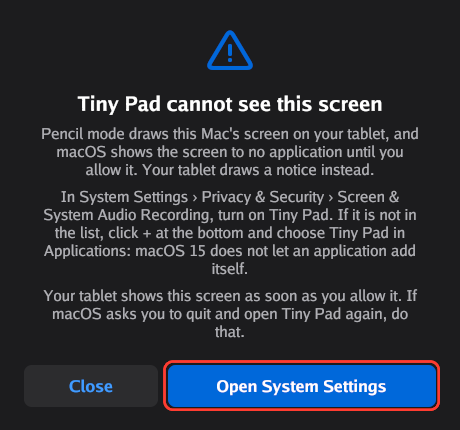
The server asks for the permission the first time that you use pencil mode. - Go to Privacy & Security › Screen & System Audio Recording. On older macOS versions, the name is Screen Recording.
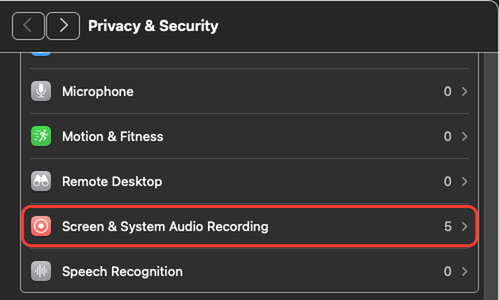
Click Screen & System Audio Recording. The number shows how many apps are in its list. - Turn on Ilopad.
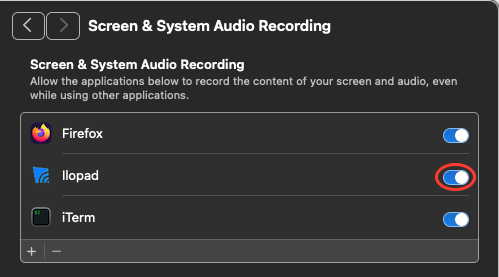
Screen & System Audio Recording on macOS 15, with Ilopad turned on. - If Ilopad is not in the list, click + at the bottom of the list. If macOS asks for your password, type it. On macOS 15, an app cannot add itself to this list.
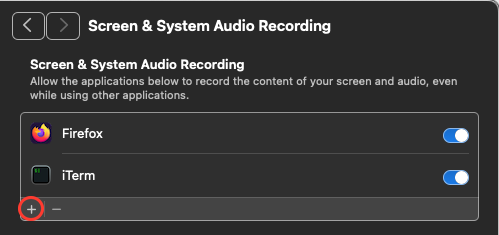
Ilopad is not in this list. Click +. - Select Ilopad in the Applications folder, then click Open.
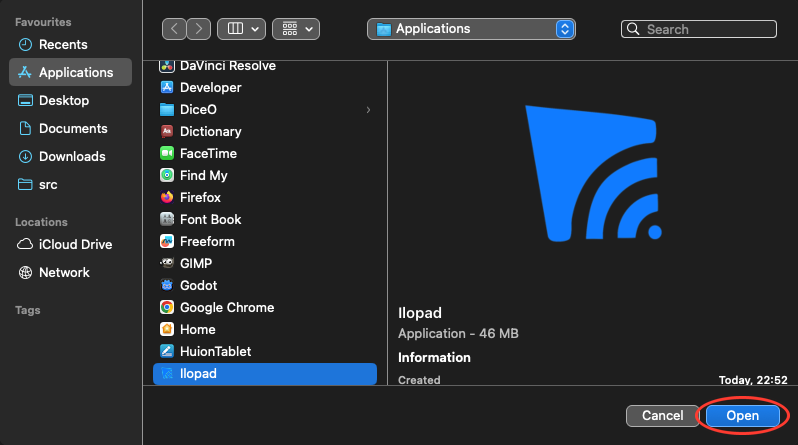
Ilopad is selected in Applications. Click Open. - If macOS asks you to quit and open Ilopad again, do that.
The iPad shows the screen when you give the permission.
Linux Wayland: the screen share stopped
On Wayland, the desktop asks you to share a screen the first time that you use pencil mode. If you cancel this dialog, or if you stop the share from the desktop, the iPad gets no screen.
When a device is still in pencil mode, the server tries to start the share again. The desktop can ask you again. If the screen does not come back:
- In the server window, click the screen button at the top right. Its tooltip is Change shared screen.
- In the desktop dialog, select a full screen, not a window or a region.
- Approve the share.
The server shows “Screen changed” at the bottom of the window. If it shows “Screen selection failed”, click the screen button again. For more about the shared screen, see The screen for pencil mode.
The screen stays empty, with no message
The cause can be a server and an app with different versions, or a screen capture that failed on the computer.
- Update the app and the server to the newest versions.
- Select a different mode in the app. Then select pencil mode again.
- If the screen stays empty, quit the server and start it again.
A weak or slow connection
The app shows two signs of the connection quality: a pill at the bottom of the screen, and the quality bars in the toolbar.
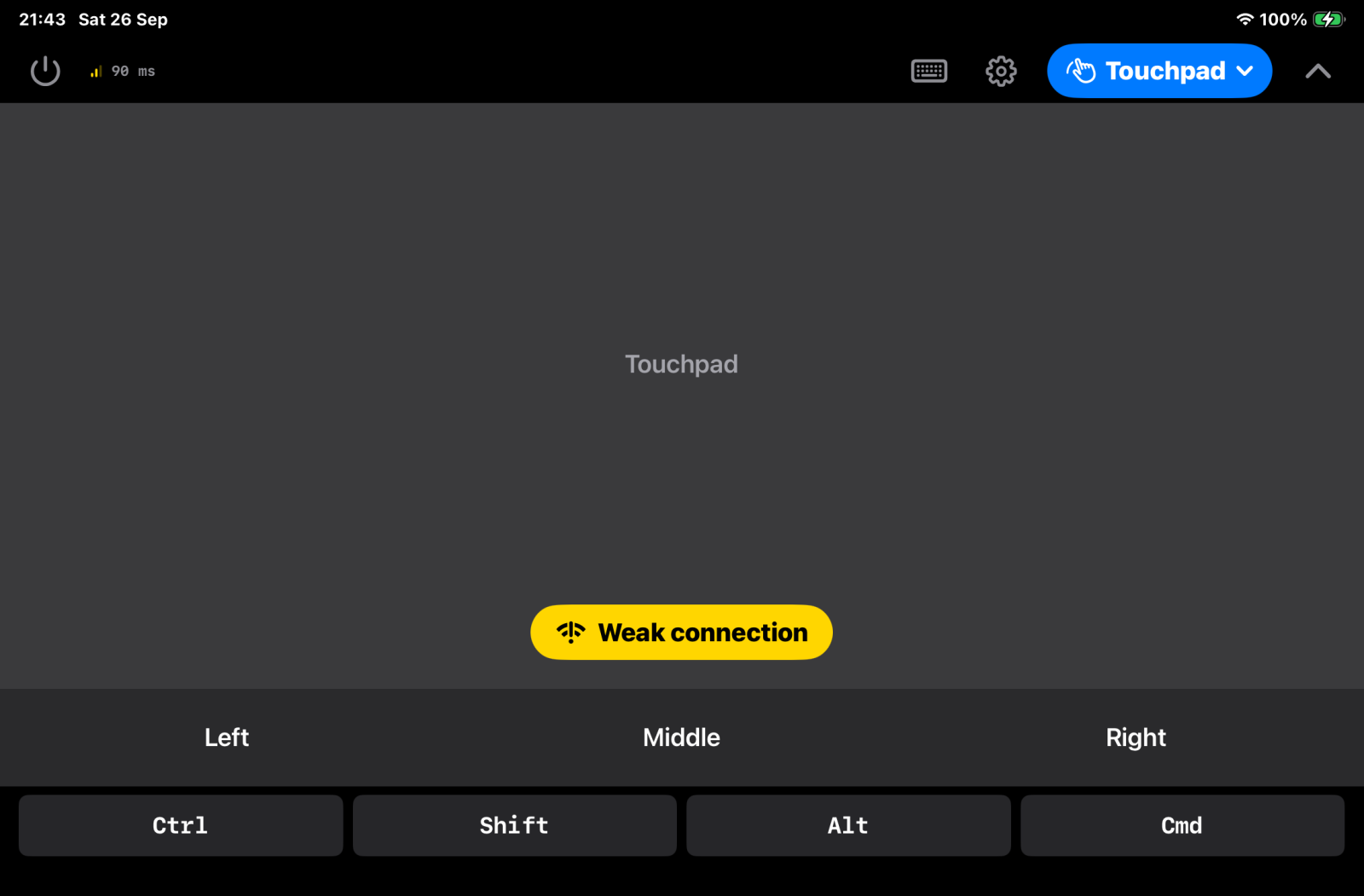
| What you see | What it means |
|---|---|
| Weak connection (yellow pill) | The network does not carry data well for a moment. The connection is still there, and the input still arrives. Continue to work. |
| Reconnecting… (red pill) | The connection is lost. The input does not arrive. The app tries again until it connects, or until you tap the power button in the toolbar. |
Tap the bars in the toolbar to see the connection details. The Status row gives the quality and the latency, for example “Good · 3 ms”. For the meaning of each quality, see Connection state. The app shows Disconnected when the server does not answer for 6 seconds.
To get a better connection:
- Move the device and the computer nearer to the Wi-Fi router.
- If the router has a 5 GHz network, connect the device to it.
- Connect the computer to the router with a network cable, if you can.
- Connect the device to the computer with a USB cable. See Connect with a USB cable.
- In pencil mode, decrease the Frame Rate setting. A lower rate uses less of the network. See Pencil mode settings.
Get help
If a problem continues, send an email to [email protected]. Include this data:
- The server version. In the server window, click the menu button, then click About.
- The app version. In the app, open the settings. The version is at the end of the Ilopad Pro card. See Version, help and privacy.
- The operating system of the computer, and the device model.
- The exact message that you see.
- The server log. See Logs.